


Linksys MR20WH (LN3111) FAQs

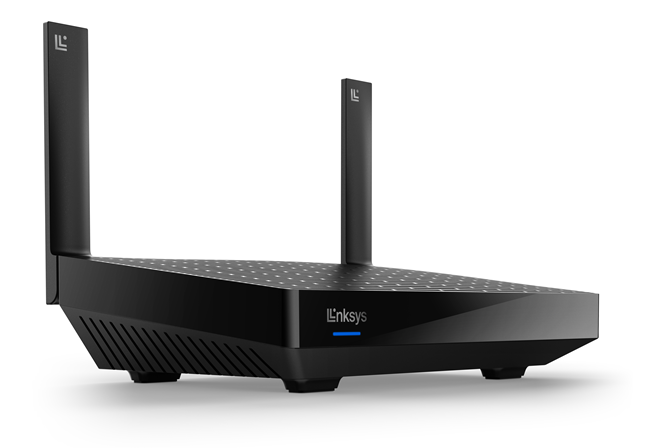
The Linksys Classic Micro router 6 uses Cognitive™ Mesh and provides you with ultra-fast Wi-Fi® 6 technology to keep your connection going strong.
HARDWARE INFORMATION
What are the features of Linksys MR20WH?
It has the following features:
- Linksys Cognitive Mesh
- 2x2 Spatial streams
- Wi-Fi® 6 (802.11ax)
- Dual-band AX3000
- Wi-Fi Protected Setup™ (WPS)
- Beamforming technology
- Guest WiFi
- WiFi security
- Parental Controls
- Wall mountable
- Dynamic Frequency Selection (DFS)
Where can I find the router’s serial and model numbers?
The serial and model numbers are printed on the router's product label.
What is the warranty on the router?
The warranty period depends on the country of purchase.
Can the router be wall-mounted?
Yes.
How many ports are there on the router?
It has five ports:
- One gigabit internet (WAN) port
- Four gigabit ethernet LAN ports
Are Linksys MR20WH and LN3111 the same product?
Yes, the Linksys MR20WH and LN3111 are the same product with two model numbers. The label on the packaging is LN3111; on the product itself, it's MR20WH.
SETUP AND INSTALLATION
How do I set up the router?
Follow these instructions to set up the router in minutes.
Can I add another router to the network?
Yes, you can add another router as a child node.
What are the requirements for setting up the router?
Below are the requirements for setting up the Linksys MR20WH.
- An active internet connection
- A desktop computer to set up and manage the router settings
What are the default settings of this product?
- The default IP address is 192.168.1.1.
- The default WiFi name is _LinksysSetupxxx, where xxx represents the last three alphanumeric characters of the router’s MAC address.
- The default password of an unconfigured router is admin.
- The default Guest WiFi name is _LinksysSetupxxx-guest, where xxx represents the last three alphanumeric characters of the router’s MAC address.
How do I configure the WiFi access for guests?
To configure the Guest Network, log in to the router's web interface and navigate to Guest Access. This feature is turned OFF by default; toggle the switch ON to enable it. Create your desired Guest WiFi name and password, then click Ok to save your changes.
Does the router support WPS pairing?
Yes, it supports WPS pairing using the external button on the back or the soft button within the router's web interface.
SECURITY AND PRIVACY
What WiFi security modes does the router support?
The Linksys MR20WH supports the following settings:
- WPA2™/WPA3™ Mixed Personal
- WPA3 Personal
- WPA2 Personal
- Enhanced Open Only
- Open and Enhanced Open
- Open
How do I secure my hard drive from unauthorized access?
You can enable the Authentication option for the external storage device and enter the following information:
- Username – use a minimum of four and a maximum of 12 alphanumeric characters.
- Password – use a minimum of four and a maximum of 50 alphanumeric characters.
Does it support Blink node light or Night mode?
No, these features are not supported.
How do I configure Parental Controls?
To learn how to configure the Parental Controls feature, click on the links below:
How to schedule a pause using Parental Controls or Family Time
How to Pause Internet Access using the router's web interface
How to schedule a pause using Parental Controls or Family Time
How to Pause Internet Access using the router's web interface
ADVANCED TROUBLESHOOTING
How do I access my router's dashboard?
Learn how to access the router's dashboard using the web interface.
How do I reset the router?
To reset the router, press and hold the reset button until you see a fourth red light flash.
When you press and hold the reset button, you will see a red light in a fading pattern. When the fading pattern has stopped, the light will turn OFF. Once this happens, release the reset button and wait for the router to boot up.
When you press and hold the reset button, you will see a red light in a fading pattern. When the fading pattern has stopped, the light will turn OFF. Once this happens, release the reset button and wait for the router to boot up.
How do I safely eject my hard drive from the router?
To safely eject the hard drive from the router, simply click on Eject on the router's web interface.
What is DFS?
DFS is a spectrum-sharing mechanism that allows multiple WiFi networks to coexist with radar systems. It automatically selects a frequency that does not interfere with certain radar systems while operating in the 5 GHz band. The benefits of using DFS channels are less WiFi interference and better WiFi performance. You can enable it on your router’s web interface.
Can my clients connect to a DFS channel?
Only if your clients support DFS channels. If your clients do not support DFS channels, they can connect to the 2.4 GHz band instead.
I have turned ON DFS channels, and I am experiencing WiFi disconnection at times. How can I resolve this?
If the router detects other devices using DFS channels, such as radar systems near your location, your router will choose another channel to use, and this will cause a momentary WiFi disconnection. To avoid this, you can turn OFF DFS.
Does this support IPv6 RD for its internet connection?
Yes. It supports IPv6 RD and 6to4 tunneling.

