


Enabling the Dynamic Frequency Selection (DFS) feature of the Linksys router

Dynamic Frequency Selection (DFS) is a spectrum-sharing mechanism that allows multiple Wireless Local Area Networks to coexist with radar systems. It automatically selects a frequency that does not interfere with certain radar systems while operating in the 5 GHz band. The benefits of using DFS channels are less Wi-Fi interference and better Wi-Fi performance. This article will show you how to enable the DFS feature of your Linksys router.
Directions
The DFS feature of your Linksys router is turned OFF by default. You can enable it using the Linksys app or your router’s web interface.
Before you begin:
- If you have routers in child mode in your network that do not support this feature, do not turn the DFS ON to avoid connectivity issues.
- Devices (e.g., computers, phones) that do not support DFS channels will connect to the 2.4 GHz band instead.
1. Open a web browser to access the router’s web interface.
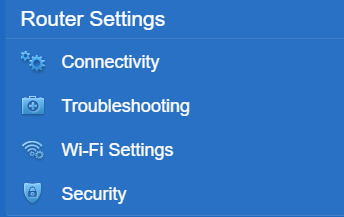
2. Click Wi-Fi Settings under Router Settings.
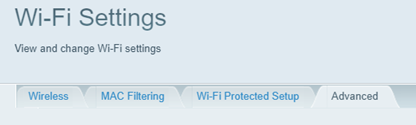
3. Click the Advanced tab.
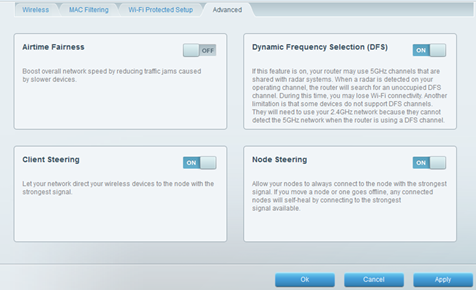
4. Turn ON the Dynamic Frequency Selection (DFS).
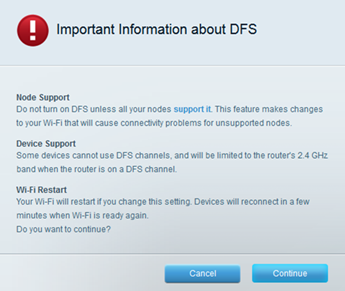
5. Click Continue.
6. Click Ok or Apply to save the changes.

