


Firmware updates improve your router’s performance, reliability, security, and compatibility by fixing known issues and adding new features.
Your Linksys Dual-Band EasyMesh WiFi Router can automatically install new firmware when Automatic Firmware Update is enabled. To enable automatic updates or check if a new firmware is available, follow these instructions.
If you still need to manually update the firmware on a node, follow the steps below.
Before updating the router:
✔ Download the correct firmware for the exact router model and save it to your computer.
✔ If the downloaded file is in .zip format, extract (unzip) it first. Use the extracted firmware file during the upgrade.
✔ Connect your computer directly to the router using an ethernet cable.
✔ Do not unplug the router, close your browser, or turn OFF the router during the upgrade. Interrupting the update can damage the firmware.
Parent node versus child node
✔ Parent node – The EasyMesh router that is connected to your modem.
✔ Child node - An EasyMesh router that extends your wireless coverage.
If you are updating the parent node, follow the steps below.
If you are updating a child node, skip to updating a child node.
Follow the instructions below to update the firmware on the parent node.
NOTE: The steps below are only applicable when the parent node is already set up. If you have not set up the parent node, follow these instructions.
1. Log in to the parent node's web interface.
2. Select Configuration.
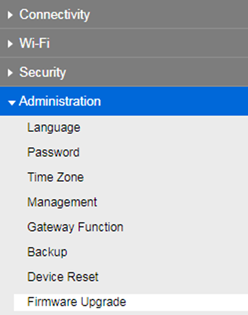
3. Go to Administration > Firmware Upgrade.
4. Click on Choose File and select the firmware that you downloaded.
Recommended: Select the Automatic checkbox so future firmware releases install automatically.
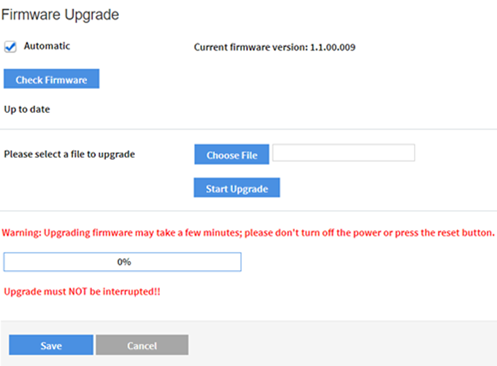
5. Click on Start Upgrade.
The firmware update may take several minutes. During this time:
✔ Do not unplug the parent node.
✔ Do not refresh or close the browser.
✔ Wait until the parent node finishes rebooting.
6. Click on Save if prompted.
Your parent node has now been updated.
Follow the instructions below to update the firmware on the child node.
IMPORTANT: If the child node has not yet been added to your EasyMesh network, complete the initial setup wizard first, even without an internet connection. After the firmware update is complete, reset the child node to factory defaults and then add it back to your EasyMesh network.
2. Select Configuration.
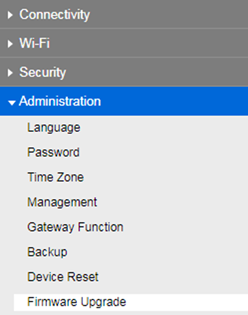
3. Go to Administration > Firmware Upgrade.
4. Click on Choose File and select the firmware that you downloaded.
Recommended: Select the Automatic checkbox so future firmware releases install automatically.
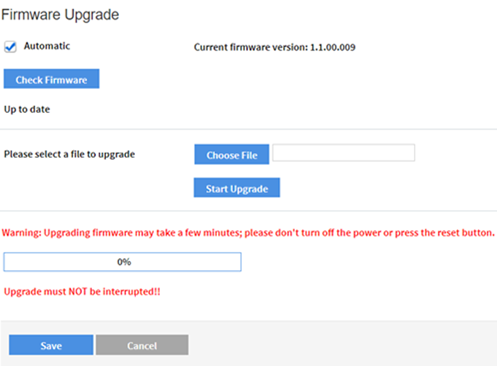
5. Click on Start Upgrade.
The firmware update may take several minutes. During this time:
✔ Do not unplug the child node.
✔ Do not refresh or close the browser.
✔ Wait until the child node finishes rebooting.
6. Click on Save if prompted.
Your child node has now been updated.
If the upgrade fails:
✔ Verify that you downloaded the firmware for the correct router model.
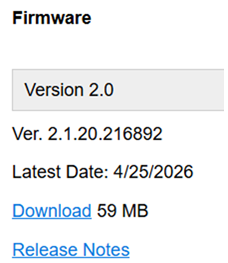
✔ Make sure the downloaded file matches the file size listed on the Linksys Support page.
Example:
✔ If you are unsure whether the download is completed successfully, download the firmware again.
✔ Restart the router and try again.

