


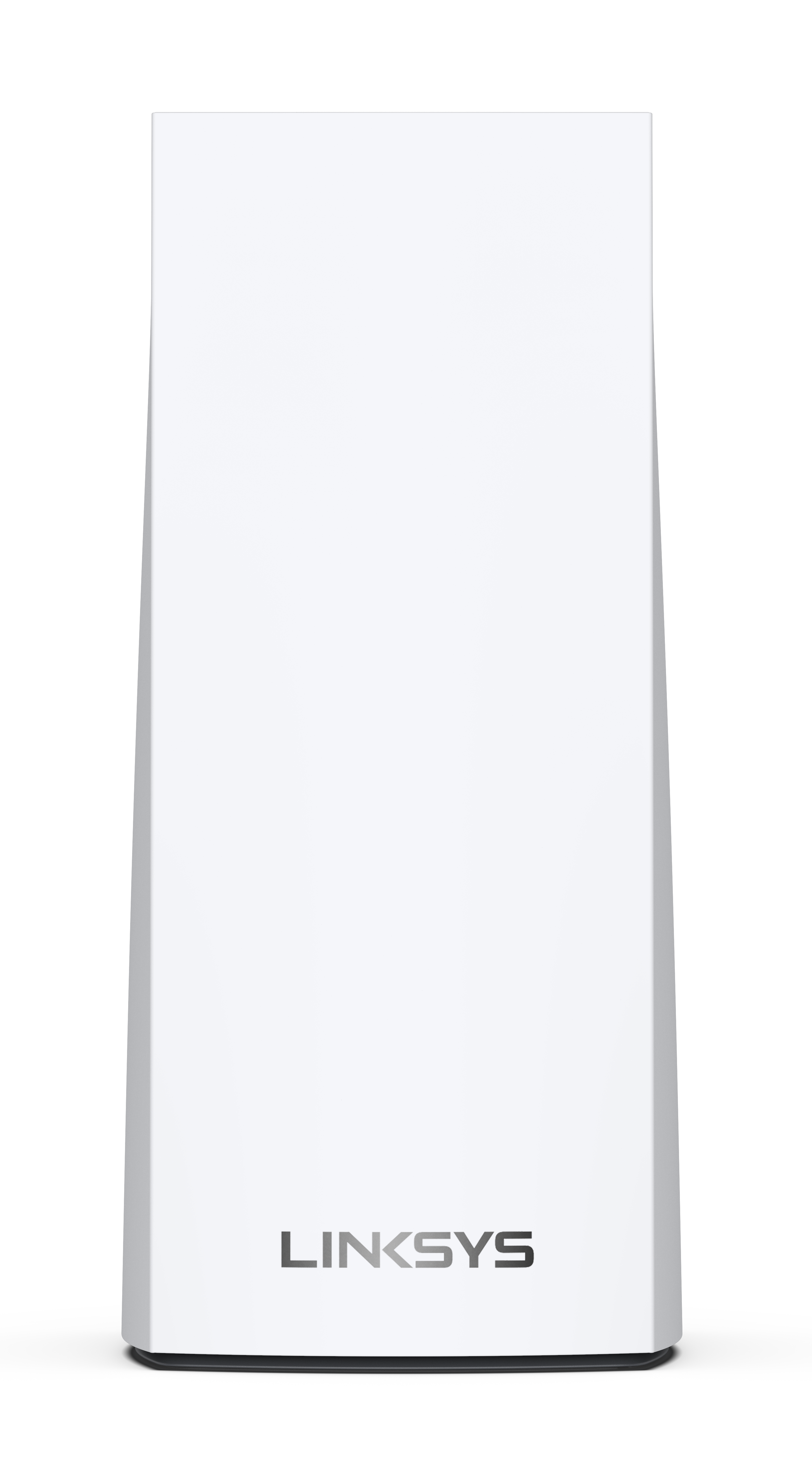
The Linksys MX5500 router offers massive simultaneous video, gaming, and high-speed data. It is easy to add to the modular system of nodes to give you flawless WiFi everywhere and easily replace a standard router with mesh WiFi.
HARDWARE INFORMATION
Below are the weight and dimensions of the node:
- Dimensions: 3.385 in x 3.385 in x 7.3 in
- Weight: 0.50 kg (1.1 lb)
SETUP AND INSTALLATION
You can set up the node through the web interface.
To set up the Linksys MX5500, you need
- An active internet connection
- A desktop computer to set up the router
- The latest desktop browser to set up and manage the router settings
The WPS feature is disabled by default. To enable WPS via the web interface, go to Wi-Fi Settings > Wi-Fi Protected Setup. Toggle the Wi-Fi Protected Setup™ button to the ON position and click on Ok or Apply.
SECURITY AND PRIVACY
The Linksys MX5500 supports the following WiFi security modes:
- WPA2™/WPA3™ Mixed Personal
- WPA3 Personal Only
- WPA2 Personal
- Enhanced Open Only
- Open and Enhanced Open
Yes. The node supports VPN passthrough configuration of IPSec, L2TP, and PPTP protocols.
Yes.
With the latest firmware, the default password is admin.
If your node is still running the Starry ISP firmware, use the default Wi-Fi password printed on the product label.
ADVANCED TROUBLESHOOTING
It is highly recommended to use the automatic updates. The node has a feature that automatically updates the firmware, which is enabled by default. You can click on the Check for Updates button on the web interface to see if new firmware is available for the node.
The latest firmware for the standard Linksys MX5500 is version 1.1.7.xxx (or later). While version 1.1.8.216775 has a higher build number, it is an ISP-specific firmware build and cannot be installed on standard retail units. Please contact Linksys Support for assistance.
Most likely, your node is a Starry ISP node, which has a blocking mechanism to prevent using retail firmware. Please contact Linksys Support to convert your router into a retail node using the latest firmware.
To reset your node to its factory defaults, press and hold the reset button until the light on top of the node turns red, fades, and flashes bright red.
IMPORTANT: Make sure that a bright red flash, followed by three to four quick faded red pulses, then another bright red flash occurs before you release the button.
You can recover the admin password through the five-digit recovery code printed on the product label at the bottom of the node. Learn more.
Dynamic Frequency Selection (DFS) is a spectrum-sharing mechanism that allows multiple wireless local area networks (WLANs) to coexist with radar systems. It automatically selects a frequency that does not interfere with certain radar systems while operating in the 5 GHz band. The benefits of using DFS channels are less WiFi interference and better WiFi performance.
No. If your other routers in child modes do not support DFS, the routers will have connectivity problems.
Only if your clients support DFS channels. Clients that do not support DFS channels can connect to the 2.4 GHz band instead.
With the latest firmware, the router requires you to log in using https://. You would get the error message if you used http://. Learn more about resolving this error.
For the Linksys mesh router to work with a 5G router, your ISP must provide a 5G router with an ethernet port for connection to the parent node.
Yes. It supports IPv6 RD and 6to4 tunneling.

