


It is recommended to enable Automatic Firmware Upgrade on your Linksys Mesh WiFi system. Auto-updates keep your network up to date with the latest firmware, additional features, and any other fixes.
Before you begin
- Use a web browser.
- Log in to the Linksys Intelligent Mesh or Linksys Cognitive™ Mesh using your Linksys cloud account, or use the node’s IP address using your router password. Learn how to determine the IP address of your node.
- To access a parent node, enter its IP address, for example, https://192.168.1.1.
- To access a child node, enter its IP address appended with /ca, for example, https://192.168.1.213/ca.
Follow the instructions below to manually upgrade the firmware for your Linksys Mesh system using one of these two methods:
Preferred method: Using the CA login
1. Download the firmware file to your computer. Select your product below:
- MX4200, MX4200C, MX8000, MX8400C, and MX12600
- WHW0301 and WHW0302
- MX5300 and MX10600
- MBE7000
- MX6200
- MX8500
- VLP01
To ensure a successful update, verify the download integrity of your firmware. Make sure to:
- Compare the file size on your computer with the specifications on the Linksys Support Page; any discrepancy suggests an incomplete download.
- Confirm that the file carries the official extension (e.g., .img) before proceeding.
- If your router was provided by your ISP, you will need to contact your ISP directly.
2. Log in to the Linksys Intelligent Mesh's or Linksys Cognitive Mesh's dashboard using your Linksys cloud account or the parent or child node’s IP address.
If you have never changed the router’s password, you may be prompted to reset your password when accessing a node by its IP address. Simply click on Reset password, which will display on your screen, and follow the on-screen instructions to reset the password. Learn more.
3. Locate and click on the CA link at the bottom-right corner of the screen.

4. Click Connectivity under Router Settings.

5. Click Choose File and select the firmware file you have downloaded. Click the Start button.

During the update, you will lose connection temporarily while the update is in progress.
6. Click Yes and wait for the update to finish. DO NOT turn OFF the router or close the browser during this process.
7. Click Ok on the Router Reboot window. You will lose connection temporarily while the router reboots.
8. Click Ok again to complete the update.
You should now have successfully upgraded your router’s firmware.
Alternative method: Using a specific link
The link to use will depend on your router’s configuration status.
Before you begin:
- Determine if your node is configured or if it is on factory default settings.
- Typically, the default IP address of your node is 192.168.1.1. If your node‘s IP address is different, use that instead.
- Make sure that your node is connected to the internet.
- You will need to know the router’s local password. Learn more.
1. Download the firmware file to your computer. Select your product below:
- MX4200, MX4200C, MX8000, MX8400C, and MX12600
- WHW0301 and WHW0302
- MX5300 and MX10600
- MBE7000
- MX6200
- MX8500
- VLP01
To ensure a successful update, verify the download integrity of your firmware. Make sure to:
- Compare the file size on your computer with the specifications on the Linksys Support Page; any discrepancy suggests an incomplete download.
- Confirm that the file carries the official extension (e.g., .img) before proceeding.
- If your router was provided by your ISP, you will need to contact your ISP directly.
2. Launch a browser, enter the appropriate link as shown below (based on the status of your node), then hit [ENTER].
- For a configured node: Enter “https://x.x.x.x/fwupdate.html” where the x.x.x.x represents the IP address of your node.
- For a node that’s on factory default settings: Enter “https://x.x.x.x:52000/fwupdate.html” where the x.x.x.x represents the IP address of your node.
3. Enter admin as the username, then enter your local router password. Click on Sign in.

4. Click Choose File, select the downloaded firmware.

5. Enter your personalized router admin password in the Admin password field.
The field may default to admin, but your personalized password is required to avoid an ErrorUnauthorized message.
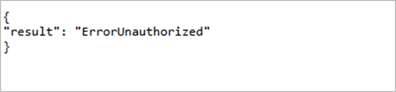
6. Click Update once done.
7. Wait until the browser displays the “result”: "OK” message.
Light behaviors you need to know about:
- Once the reboot is complete, a configured node will display a solid blue light (for Linksys Intelligent Mesh products) or a solid white light (for Linksys Cognitive Mesh products), indicating it is back online.
- Alternatively, a node that is on factory default settings (unconfigured) will display a solid purple light (for Linksys Intelligent Mesh products) or a solid blue light (for Linksys Cognitive Mesh products), indicating it is ready for setup.
Find out more:
Upgrading the firmware of your Linksys Mesh system

