


Keeping your Linksys Mesh WiFi system up to date helps improve security, stability, performance, and compatibility with the latest features. While Automatic Firmware Updates are recommended, you can manually install firmware if you’ve been instructed by Linksys Support or need to install a specific firmware version.
- Automatic updates repeatedly fail to install.
- The current firmware is causing network stability issues.
- You need access to critical or early release features not yet available via auto-update.
- You are unable to update the firmware through the mobile app.
- Make sure your router is connected to the internet.
- Before updating your firmware, make sure to have the following:
✔ Download the correct firmware for your Linksys WiFi Mesh model.
✔ A computer with a supported web browser.
✔ The router’s admin password.
✔ A stable power source. Do not unplug or restart your router during the upgrade.
✔ For the most reliable update, connect your computer to the parent node using an ethernet cable.
- If your Linksys device was provided by your internet service provider (ISP), contact them for firmware updates. ISP-managed devices use ISP-approved firmware.
- Make sure the downloaded file matches the file size listed on the Linksys Support page.
Example:
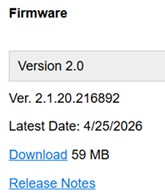
- Verify that the firmware file uses the correct file extension (such as .img).
- If you are unsure whether the download is completed successfully, download the firmware again before proceeding.
Use the method that matches your situation.
- Method 1 (Recommended): Use this method if you can log in to your Linksys router’s web interface.
- Method 2 (Alternative): Use this method only if:
- You cannot access the Linksys router’s web interface.
- Linksys Support instructed you to use this method.
- Your router is still in its factory default settings.
1. Log in to the Linksys Intelligent Mesh or Linksys Cognitive Mesh dashboard using the parent or child node’s IP address.
If you have never changed the router’s password, you may be prompted to reset your password when accessing a node by its IP address. Simply click on Reset password, which will display on your screen, and follow the on-screen instructions to reset the password. Learn more.
2. Locate and click on the CA link at the bottom-right corner of the screen. If you do not have a CA link, proceed to the next step.

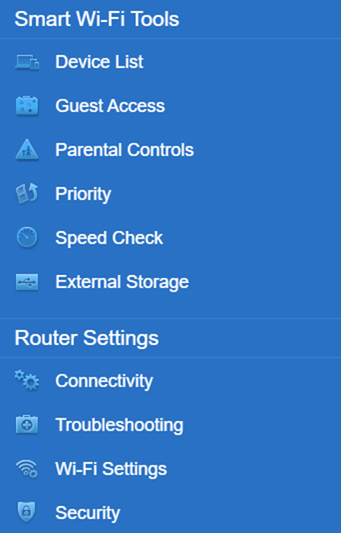
3. Click Connectivity under Router Settings.
4. Click Choose File and select the firmware file you have downloaded. Click the Start button.
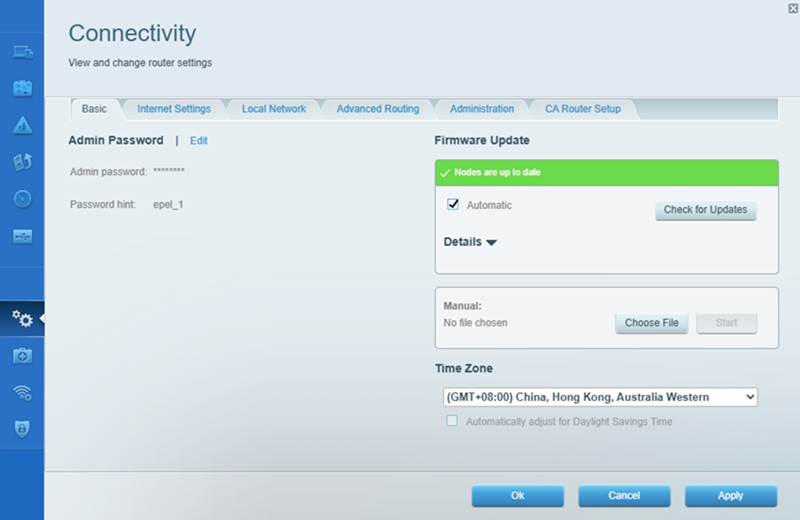
During the update, you will lose connection temporarily while the update is in progress.
5. Click Yes and wait for the update to finish. DO NOT turn OFF the router or close the browser during this process.
6. Click Ok on the Router Reboot window. You will lose connection temporarily while the router reboots.
7. Click Ok again to complete the update.
You should now have successfully upgraded your router’s firmware.
1. Launch a browser, enter the appropriate link as shown below (based on the status of your node), then hit [ENTER].
- For a configured node: Enter “https://x.x.x.x/fwupdate.html” where the x.x.x.x represents the IP address of your node.
- For a node that’s on factory default settings: Enter “https://x.x.x.x:52000/fwupdate.html” where the x.x.x.x represents the IP address of your node.
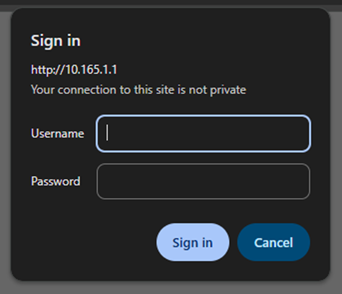
2. Enter admin as the username, then enter your local router password. Click on Sign in.
3. Click Choose File, select the downloaded firmware.
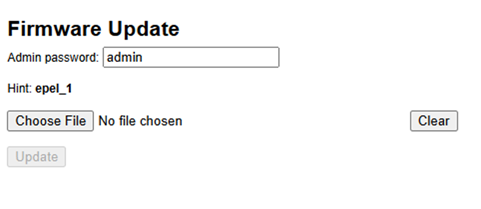
4. Enter your personalized router admin password in the Admin password field.
The field may default to admin, but your personalized password is required to avoid an ErrorUnauthorized message.

5. Click Update once done.
6. Wait until the browser displays the “result”: "OK” message.
You should now have successfully upgraded your router’s firmware.
- Once the reboot is complete, a configured node will display a solid blue light (for Linksys Intelligent Mesh products) or a solid white light (for Linksys Cognitive Mesh products), indicating it is back online.
- Alternatively, a node that is on factory default settings (unconfigured) will display a solid purple light (for Linksys Intelligent Mesh products) or a solid blue light (for Linksys Cognitive Mesh products), indicating it is ready for setup.
If the firmware update does not complete successfully:
- Restart the router and try the update again.
- Make sure you are entering the correct router password.
Find out more:

