


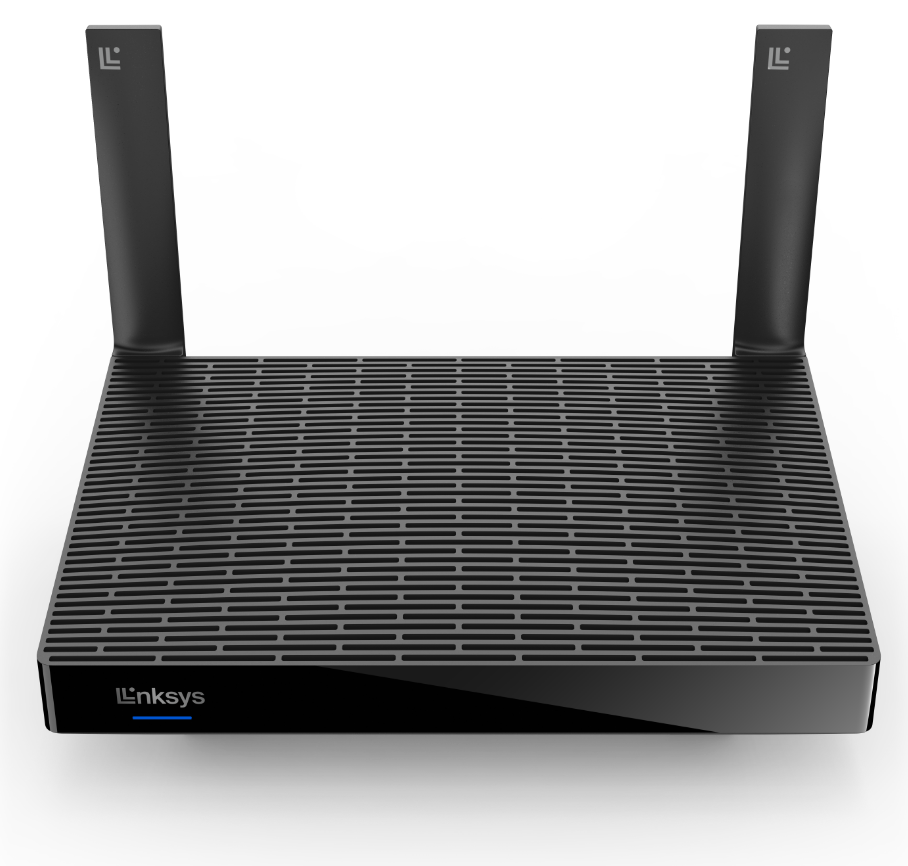
The Linksys MR5500 is powered by Intelligent Mesh™ technology that adapts to your WiFi needs. Your devices will always have a full-strength signal throughout your entire home.
HARDWARE INFORMATION
The Linksys MR5500 has the following parts:
Ports:
- Four gigabit ethernet (LAN) ports
- One gigabit internet (WAN) port
- Power port (12V, 2A)
- One USB 3.0 port for external storage support (storage support is available only on the parent node). The supported formats are as follows:
- FAT, FAT32, NTFS, and HFS+ journaled and non-journaled file systems
- Supports SMB v2.0
- UPnP®
- Supports up to 1100mA current draw
Buttons and switch
- Reset button
- WPS button
- Power switch (rocker-style)
- Two adjustable antennas
Weight: 574 g (1.26 lbs)
Dimensions: 8.46 in x 6.10 in x 2.20 in
The Linksys MR5500 has the following features:
- Intelligent Mesh technology
- AX5400 Dual-Band Wi-Fi® 6
- 802.11ax
- 2x4 spatial streams
- Guest Network
- Wi-Fi Protected Setup™
- Dynamic Frequency Selection (DFS) support
- Beamforming support
The Linksys MR5500 has the following default settings:
- The default IP address is 192.168.1.1. If the upstream device uses the same IP address, the router will automatically use a different LAN IP address to avoid any conflict.
- The default Guest network IP address range is 192.168.3.x.
- The default administrator password of an unconfigured router is admin.
- The default WiFi name is LinksysSetupxxx (where xxx represents the last three digits of the router's MAC address).
- Each router has a unique pre-assigned WiFi password (found at the bottom of the router).
- The default Guest WiFi name is _LinksysSetupxxx-guest (where xxx represents the last three digits of the router’s MAC address).
- The Guest network is turned OFF by default. It can be enabled using the web interface.
SETUP AND INSTALLATION
You will need the following for setup:
- Internet connection
- Latest desktop browser for setup and web access - Google Chrome™, Microsoft Edge™, Firefox®, or Safari®
The Linksys MR5500 supports the following WiFi security modes:
- WPA2™/WPA3™ Mixed Personal
- WPA3 Personal Only
- WPA2 Personal
- Enhanced Open Only
- Open and Enhanced Open
- Open
FIRMWARE UPGRADE
By default, your router's Automatic Firmware Update feature is enabled and will upgrade the firmware whenever a new version is released. Learn more.
The firmware version can be found in the router’s web interface. Click Connectivity under Router Settings. On the Basic tab, click Details under Firmware Update. The firmware version will be displayed under the Current Version of your device.
ADVANCED TROUBLESHOOTING
You can access your dashboard using the router's web interface.
The External Storage feature of the Linksys MR5500 allows you to connect an external storage device to its USB port to share an entire hard drive. It features one USB 3.0 port for a storage drive.
The Linksys MR5500 supports the following file formats:
- FAT, FAT32, NTFS, and HFS+ journaled and non-journaled file systems
No. The USB port doesn't support FTP.
To safely eject your hard drive from the router, simply click on the Eject icon located on the router's web interface. Learn more.
Yes. This can be done by enabling Authentication through your router's External Storage feature.
NOTE: The username should have a minimum of four and a maximum of 12 alphanumeric characters, while the password should have a minimum of four and a maximum of 50 alphanumeric characters. Both can include valid characters such as an underscore ( _ ) or a dash ( – ). Learn more.
To reset the router to its factory defaults, press and hold the reset button for 20 seconds (you will see a bright red flash, followed by three to four quick faded red pulses, then another bright red flash), then you can release the button. Learn more.
You can recover your admin password using the five-digit recovery code printed on the product label at the bottom. Follow the steps below to learn how:
1. Access your router’s web interface.
2. Enter your router password in the field and then click Sign In. If you have forgotten it, click the Reset password link.
3. Enter the five-digit recovery code located on the product label shown at the bottom of your router, then click Submit.
4. You will be prompted to enter a new password and an optional password hint. Click Reset to save your settings.
You should now be securely logged into the dashboard.
To locate the exact model number of your router, check its product label located at the bottom. The router's web interface will display your model series, but the product label contains the exact model number.
For the Linksys mesh router to work with a 5G router, your ISP must provide a 5G router with an ethernet port for connection to the parent node.
Yes. It supports IPv6.

