


Supported models: Linksys WHW03 series, MXxxxx series, and MRxxxx series.
This article will guide you on how to configure a child node that is on factory defaults to a wired child node.
Before you begin:
- Your Linksys parent router (router connected to the modem) must be set up and online.
- If the child node is currently set up as a wireless child node, simply connect an ethernet cable to one of the ports on the child node and connect the other end to the networking device within your network or to a LAN port on the parent router. It will automatically switch from a wireless to a wired child node. No need to configure anything.
- You will need an ethernet cable.
- You will need a computer to access the web interface.
- Adding child nodes using the Linksys app is no longer supported
NOTE: Images and steps may vary depending on the model of your router.
1. Connect your computer to the Linksys WiFi network or plug it into an available LAN port on the parent router.
2. Launch a web browser. Enter the parent node's IP address in the Address bar, then hit [ENTER]. The default IP address is "https://192.168.1.1" or enter "myrouter.local".
If you receive a browser error message, follow these instructions to bypass it.

3. Enter the router’s password. The default password is admin.
If you forgot your router password, click Reset password to create a new one.
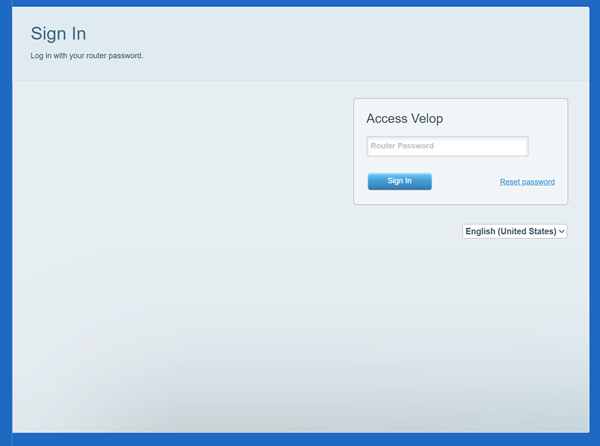
If you see the following screen, your router may be running older firmware. Make sure you are on the local login, which is the Access Router section.

4. Under Router Settings, click on Connectivity.

5. Go to the CA Router Setup tab. Then, click on Add Wired Child Nodes.

If you do not see the CA Router Setup tab, your router may be running older firmware. Close the window, scroll to the bottom of the page, and click CA. You should then see the CA Router Setup tab.
6. Connect the power cord to the wired child node and wait for the light to turn solid purple.

If the light on the child node is red, hold down the reset button on this child node for about 20 seconds to restore it to factory defaults. Then, wait until the light turns solid purple before going to the next step.
7. Connect an ethernet cable from the child node's Internet port to a LAN port on the parent router.

8. The light on the wired child node will begin blinking once the wired node has been detected. This may take about 2 minutes.
9. Wait until the child node's light turns solid blue.

10. Once the light is solid blue, click on Done Adding Child Nodes, then click Ok or Apply.

11. Your wired child node is now ready to use. All the ports on the child node, including the Internet port, can be used as LAN ports now.
Find out more:
Adding a child node to your existing Linksys Velop Intelligent Mesh WiFi system
Adding a child node to an existing Linksys Mesh system

