


The recommended method for managing and setting up your Linksys Classic Micro Router. To access your router through a web browser, follow the instructions below.
Before you begin:
Make sure that you have already set up the router and that your devices are connected to your router's network.
You will need a computer.
1. Connect a computer to the Linksys WiFi network.
2. Open a desktop browser and log in using any of the following:
- The router's default IP address is 192.168.1.1.
- Use "https://myrouter.local" as an alternative to the IP address.
- You can also enter "https://linksysxxxxx.local" (the x's are the last five digits of the router's serial number).
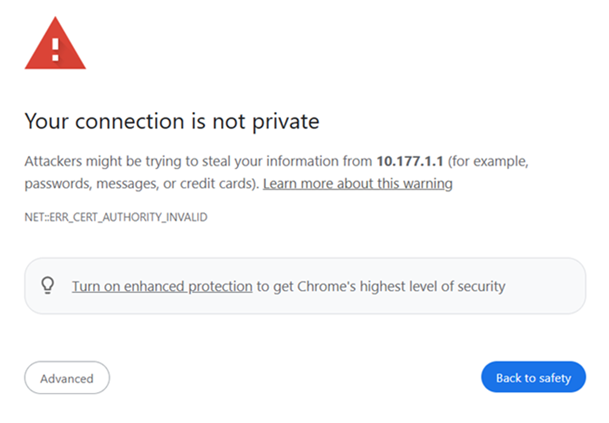
If you receive a browser message as shown below, follow these instructions to bypass this message.
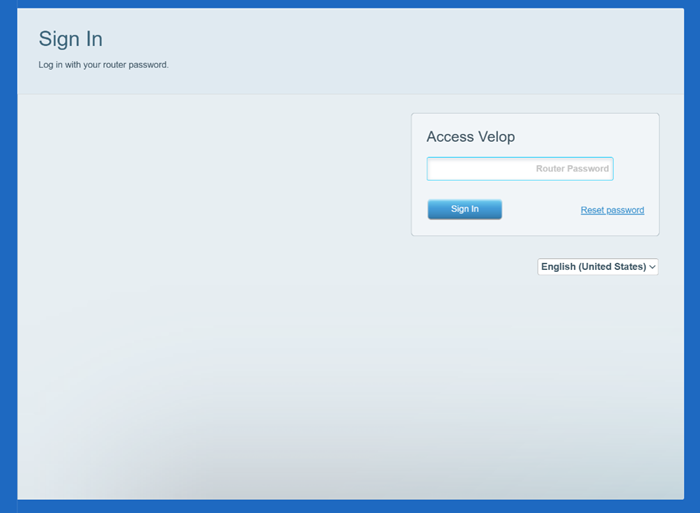
3. If you have customized your router password, enter your password. Otherwise, enter the default password, which is admin. If you have forgotten the password, click on Reset password to set a new password.
4. You have now logged into the router’s dashboard.
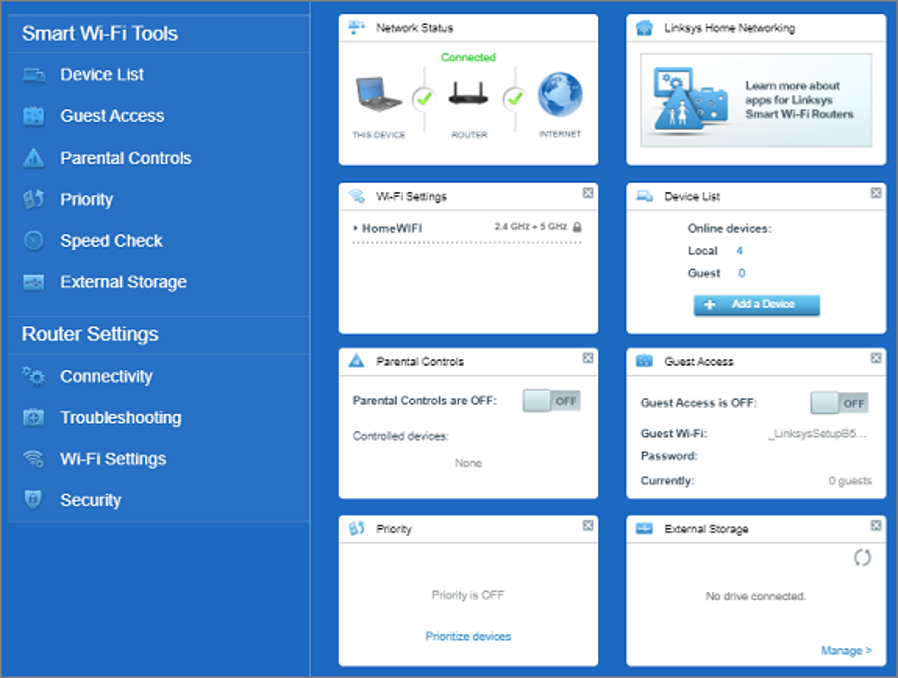
You have successfully logged in to your router's web interface.

