


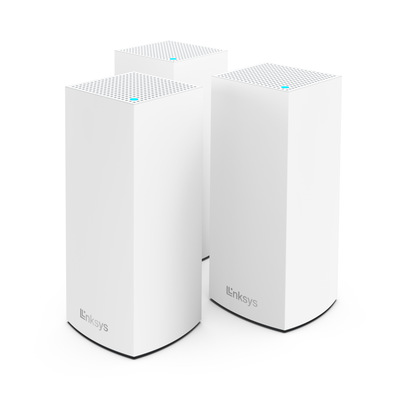
Say Hello to the Linksys MX5500
The Linksys Atlas Pro 6 Dual-Band Mesh WiFi with Intelligent Mesh® delivers next-level streaming, gaming, and video calls with seamless, uninterrupted performance. With support for 160 MHz channels, it unlocks the full potential of Wi-Fi® 6, delivering exceptional speed and connectivity to every device on your network.
- 802.11ax
- Dual-band AX5400
- 2x4 Spatial streams
- Guest WiFi
- Parental Controls
- Band steering
- Beamforming support
- WiFi security
- Coverage of up to 2,700 sq ft per node
- Dynamic Frequency Selection (DFS) support
- Next-Gen orthogonal frequency-division multiple access (OFDMA) technology
- Dimensions: 3.385 in x 3.385 in x 7.3 in
- Weight: 0.50 kg (1.1 lb)
- Five internal antennas
- Switch/ports/buttons:
- Power switch (sliding)
- Power port (12V, 2A)
- Three ethernet ports (1 Gbps)
- One internet port (1 Gbps)
- Wi-Fi Protected Setup™ (WPS) button
- Reset button
- Internet connection
- A desktop computer to set up the router
- The latest desktop browser to set up and manage the router settings
- Linksys MX5503 (three-pack), MX5502 (two-pack), or MX5501 (one-pack)
- Ethernet cable (one for each node)
- Power adapter (one for each node)
- Quick installation guide
- Regulatory and warranty documentation
The hardware version is located beside or beneath the model number and is labeled version, ver., or V. If there is no version number beside the model number on your Linksys product, the device is version 1. If you still have trouble finding your version number, see the complete article to learn more.
- Firmware
- Ver. 1.1.7.216940
- Latest Date: 07/14/2026
- Download 38.8 MB
- Release Notes
Upgrade Failed? If your node is from a Starry ISP, it will block retail firmware installations. Contact Linksys Support to convert it before installing retail firmware.
1. Log in to the router’s web interface.
2. Click Wi-Fi Settings under Router Settings to view and update your WiFi configuration.
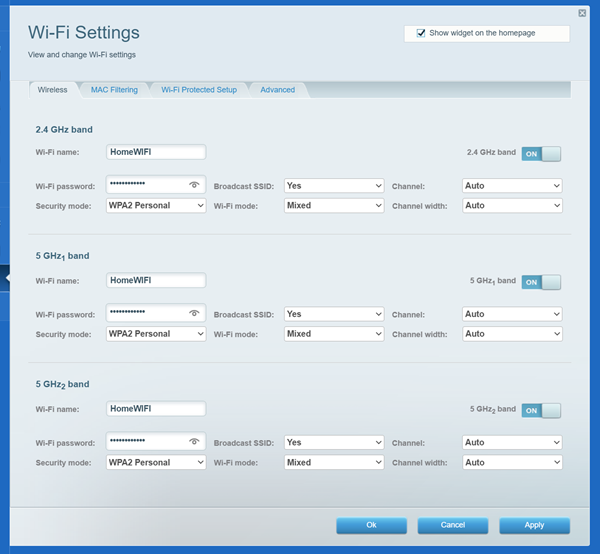
3. Change your settings according to your preference, click Apply, and then click Ok.
You will temporarily lose your WiFi connection while the settings are being saved. If you’ve changed your WiFi name or password, you’ll need to reconnect using the updated credentials.
1. Press and hold the Reset button at the bottom of the device.
The top light of the node will flash bright red, pulse dimly three times, flash bright red again, and then turn OFF. You can release the reset button after this process, which takes 10-20 seconds.
2. Wait for the light to turn solid purple, indicating it is ready to be set up.
Select each category below to view the articles.

