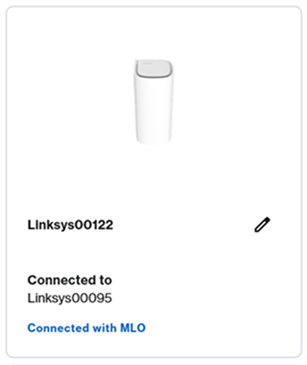
Multi-Link Operation (MLO) is supported on Wi-Fi® 7 devices. With MLO, WiFi 7 establishes simultaneous connections between a parent node and a child node or between the router and WiFi 7 devices. These links are established using the 2.4 GHz, 5 GHz, or 6 GHz bands, depending on what the router supports. This helps to improve data throughput, reduce latency, and make the overall connection more reliable.
Supported products:
- LN1600 series
- SPNM60
- SPNM62
This article will guide you on how to enable this feature for routers that support the LinksysNOW web.
Settings may vary depending on the model number of your device.
Follow these instructions to enable the MLO feature.
1. Log in to the router's web interface.
2. Go to Menu > Incredible-WiFi.
3. Enable Quick Setup by toggling the switch.
- The WiFi name and password must be the same on all WiFi radios, except the Guest network.
- The security mode must be WPA2/WPA3 Mixed or higher. If your router supports a 6 GHz radio, it will use WPA3.
- If your router doesn’t support the Quick Setup, simply configure each radio separately.
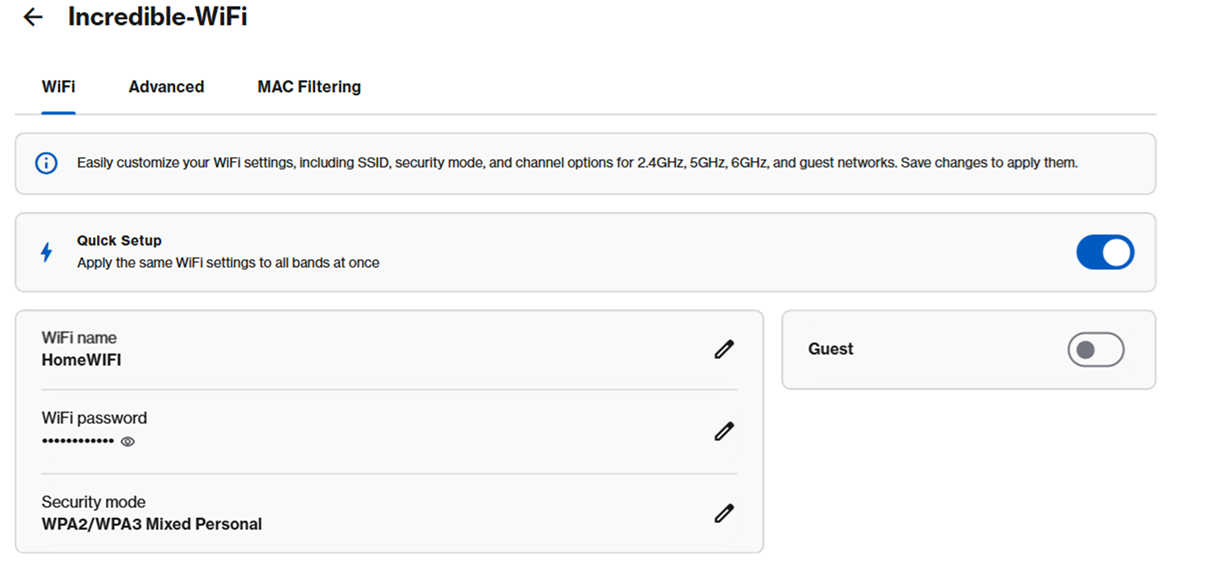
4. Click Save. Your devices will temporarily lose your connection while the settings are applied. If you changed the WiFi name or password, reconnect using your new credentials. Child nodes will temporarily disconnect during this change and wait until all child nodes have a solid white light.
5. Click on Advanced and then toggle the switch to enable the Multi-Link Operation feature. Click Save. Your devices will temporarily lose your connection while the settings are applied.
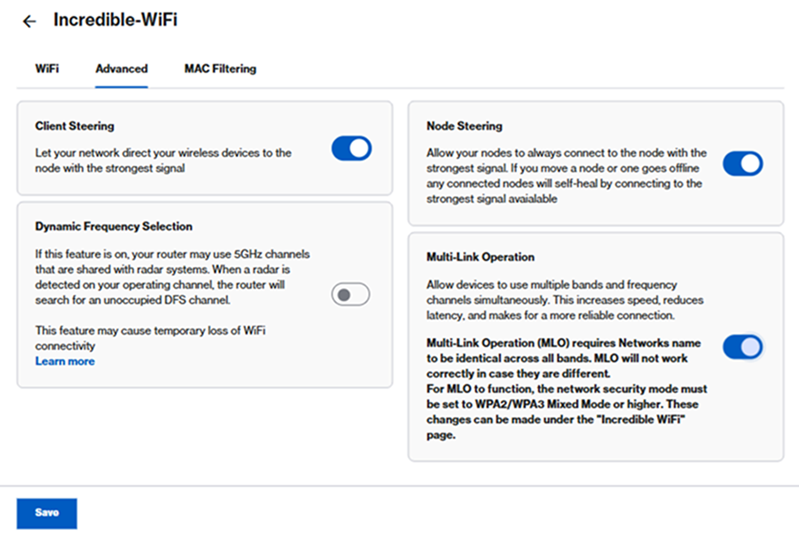
6. If you have additional child nodes, wait until the link lights on the child nodes turn solid white. You have now enabled the MLO feature.
Additional tips:
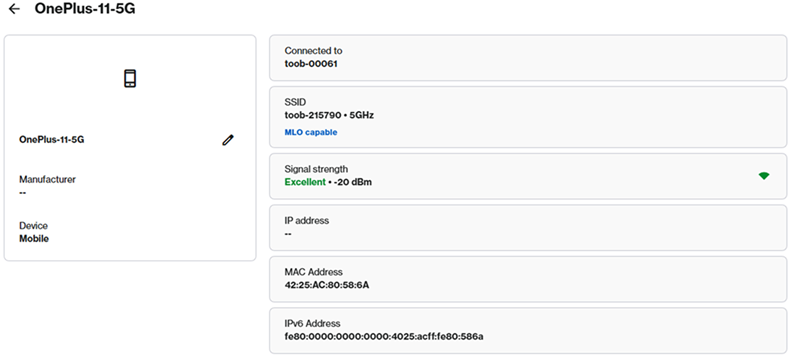
- When a supported MLO client is connected, you will see an MLO-capable tag in Instant-Devices, as shown below.
- If your network consists of Linksys SPNM62 parent and child nodes, the child nodes will support MLO backhaul, and an MLO tag will appear in Instant-Topology.