


The Linksys app Troubleshooter helps identify and resolve common internet and WiFi connectivity issues. It guides you through a series of checks, such as testing your internet speed, optimizing wireless channels, checking your device’s signal strength, and restarting your router.
Before you begin:
- Make sure your mobile device is connected to your Linksys WiFi network.
- Images may vary depending on your mobile device’s operating system.
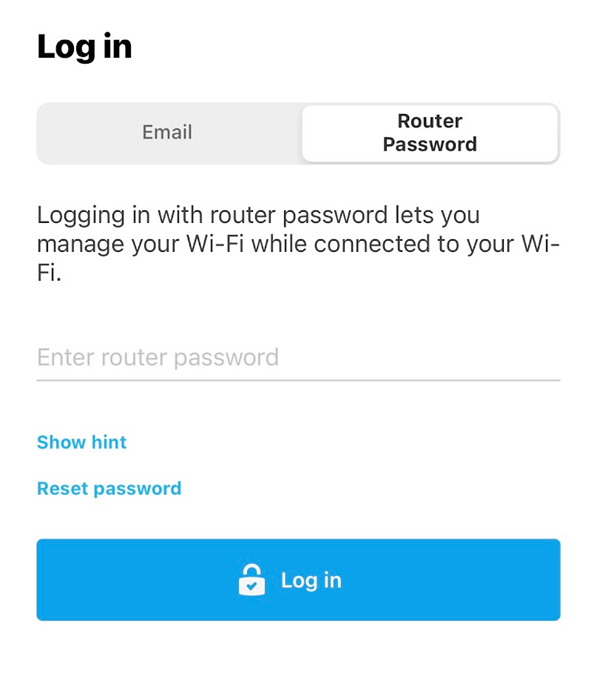
1. Launch the Linksys app and tap on the Router Password tab, enter your router admin password, and tap Log in.
| iOS | Android™ |
 |
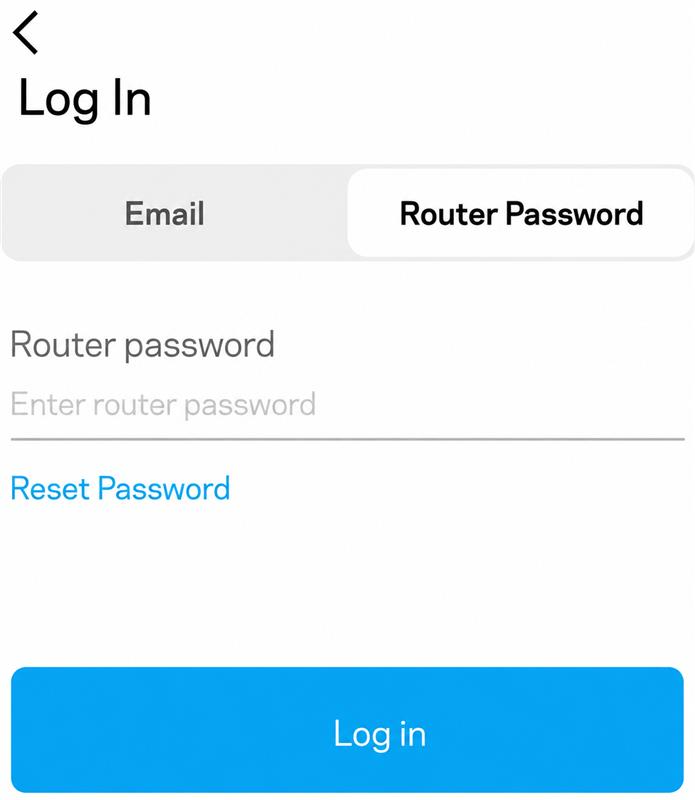 |
If you have forgotten the password, tap Reset password/Reset Password and follow the instructions to recover the password.
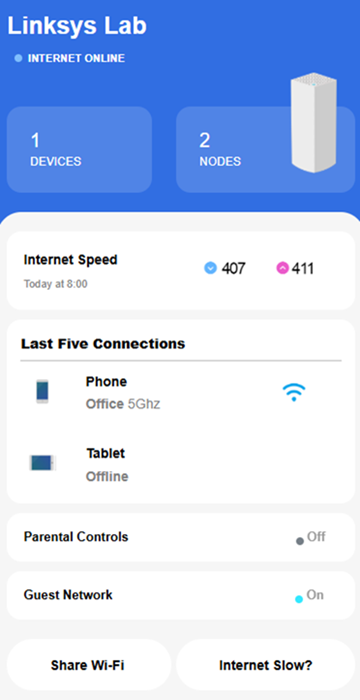
You will then land on the dashboard.
2. Scroll down and tap the Internet Slow? option.
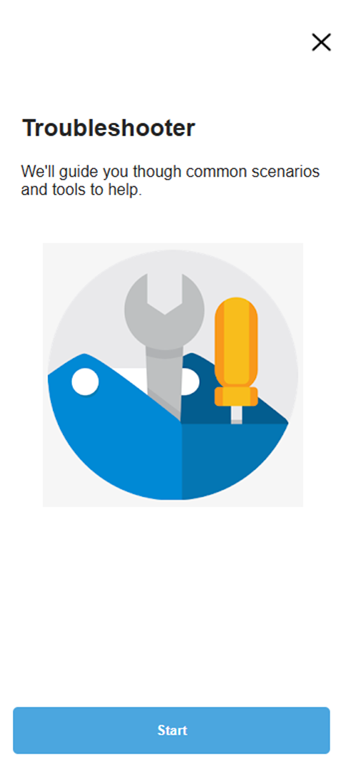
3. Tap Start.
4. Choose one of the following options:
- Check internet speeds – Test your internet connection to help determine whether the issue is with your Internet Service Provider (ISP)
- Optimize channels – Scans for wireless interference and recommends a better WiFi channel.
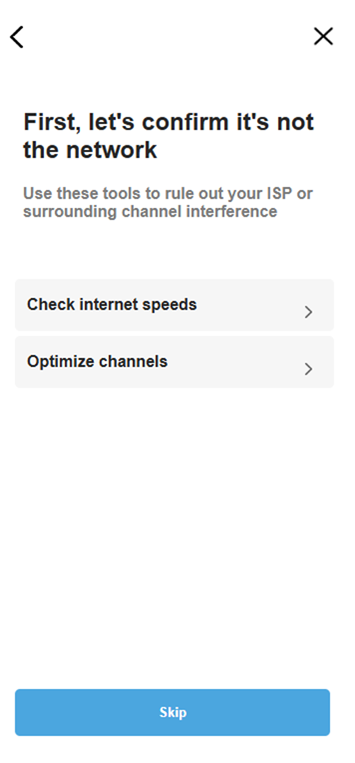
5. Follow the on-screen instructions to complete the selected test.
If you choose to Skip, the Troubleshooter lets you:
- Check your device’s WiFi signal strength.
- Restart your router or devices.
6. Tap Continue to proceed.
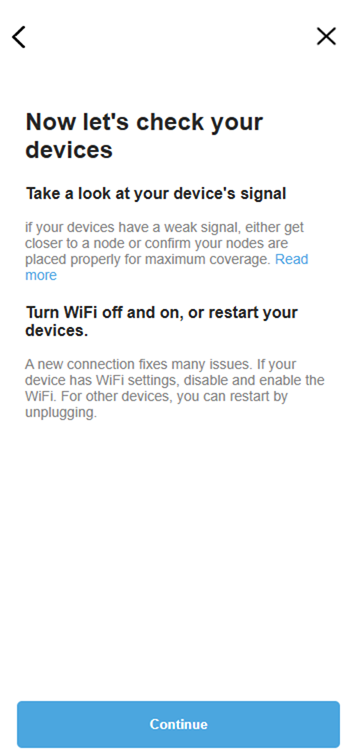
7. On the final screen, choose one of the following:
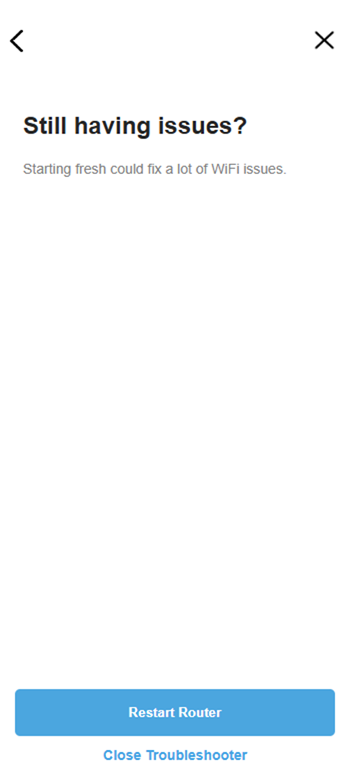
- Restart Router – Restarts your router to help resolve temporary network issues.
- Close Troubleshooter – Exits the Troubleshooter and returns you to the app.
Some Linksys routers do not support the built-in Speed Test feature. If your router does not support it, the Troubleshooter will guide you through checking your connection and may ask you to perform an internet speed test using Speedtest.net.
1. If your network is offline, open the Linksys app and tap Troubleshoot your connection.
2. Verify that all cables are securely connected and that your modem and router are powered ON. Once everything is connected, tap Everything Is Connected.
3. If the app still detects no internet connection, unplug both your modem and your parent router.
4. After reconnecting and powering the devices back ON, tap I’ve Done This to let the Troubleshooter check the connection again.
5. If the internet connection is still unavailable, the Troubleshooter will recommend contacting your ISP to verify that your internet service is active.
Tap Close Troubleshooter to exit.

