


If you need to reset your node to factory defaults, follow these instructions.
Through the Linksys app
1. Log in to the Linksys app and access your dashboard.
2. Tap the menu icon on the upper left portion of the screen.
3. Tap Network Administration.
| iOS | Android™ |
 |
 |
4. On the Network Administration page, scroll to the bottom, tap the refresh icon, and then Restart. Your devices will disconnect from the network, but they will reconnect automatically once the node is ready and the devices have found the network.

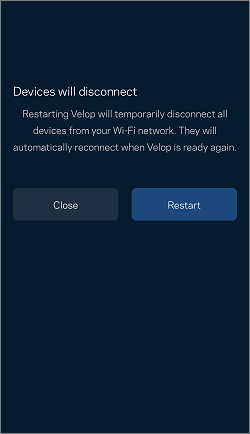
You have now restarted your Linksys Mesh system.
Through the router's web interface
1. Connect a desktop computer to your Linksys WiFi.
2. Launch a browser, type in the Address bar either “myrouter.local” or “https://192.168.1.1” and hit [ENTER].
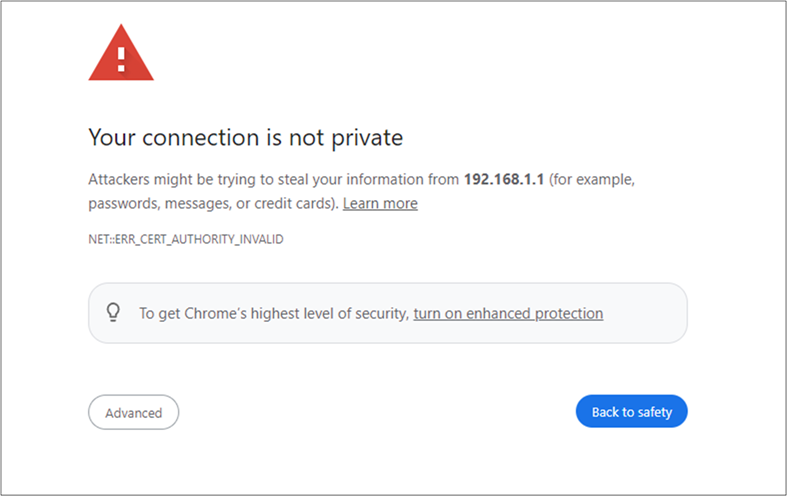
3. If you receive a browser error message, follow these steps to resolve this issue.
4. Enter your router password. “admin” is the default password. If you have forgotten the password, click on the Reset password link to recover it.
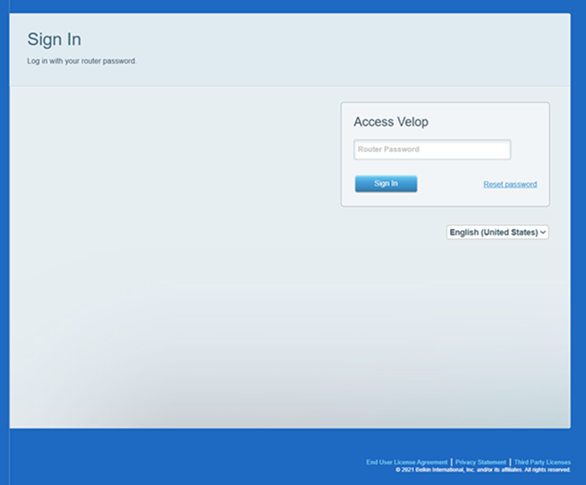
5. You will be redirected to the dashboard.
6. Under Router Settings, click on Troubleshooting.
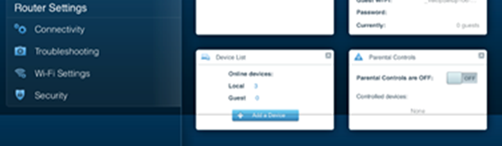
3. Go to the Diagnostics tab and then click on the restart link.
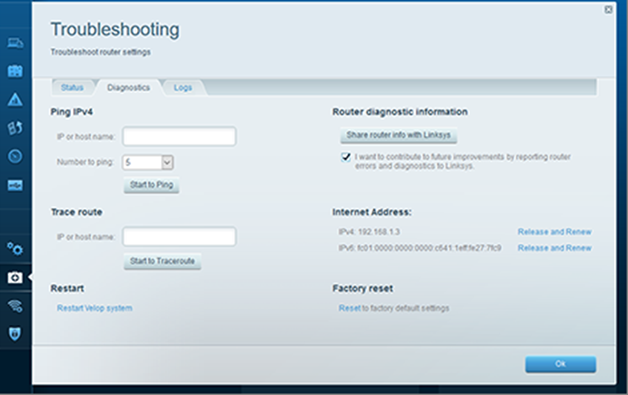
4. Click on Restart.
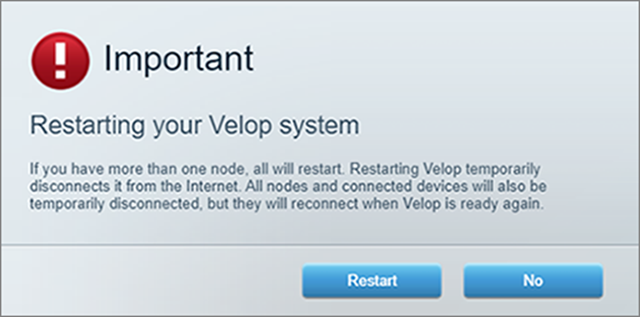
Your devices will disconnect from the network, but they will reconnect automatically once the node is ready and the devices have found the network.
You have now restarted your Linksys Mesh system.
Find out more:
Adding a child node to your existing Linksys Velop Intelligent Mesh WiFi system

