


Rebooting your router power-cycles the device. All connected devices will briefly lose connection, but should automatically reconnect. Resetting the router restores it to factory defaults, erasing all custom settings; you will need to reconfigure it manually afterward.
Why reboot or reset your router?
It helps resolve various router-related issues. Try rebooting first, and if the problem persists, reset the router and reconfigure it.
To reboot or reset the router using your web interface, follow the steps below:
Options and steps vary depending on the model of your router.
1. Log in to the router's web interface.
2. Click on Troubleshooting.

3. Click the Diagnostics tab and click on the Restart mesh WiFi system link.

4. Click on Restart.

Watch the power light on the router while rebooting. It should blink or flash, indicating the reboot process. Wait a few minutes for the process to complete.
5. Click on Ok.
Reset to factory default settings
Options and steps vary depending on the model of your router.
1. Log in to the router's web interface.
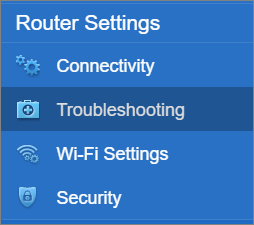
2. Click on Troubleshooting.
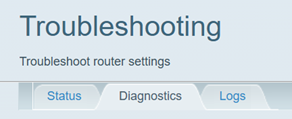
3. Click the Diagnostics tab.
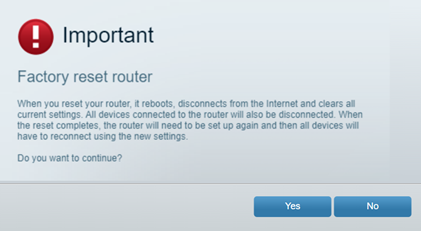
4. Click on Reset.

5. Click on Yes.
To manually reset your router, press and hold the Reset button for about 10 seconds while the device is powered ON, then release it. Resetting the router will erase all configurations made on it. Learn more.

