


If your internet feels slow, videos keep buffering, or the WiFi drops in certain areas of your home, don’t worry, because most Linksys mesh network issues can be fixed with a few simple troubleshooting steps.
Understanding Your Speed Test Results
When you run a speed test, it measures three things:
- Download Speed – How fast you can get content from the internet (e.g., streaming videos, downloading files).
- Upload Speed – How fast you can send content to the internet (e.g., uploading videos, sending files).
- Ping/Latency – How quickly your device communicates with servers (important for gaming and video calls).
- Restart your modem and Linksys mesh nodes.
- Move closer to the main node and test the connection again.
- Connect to the 5 GHz or 6 GHz WiFi band if available.
- Pause large downloads, cloud backups, or streaming on other devices.
- Run a speed test.
Before troubleshooting your Linksys mesh system, check whether the issue is coming from your internet service provider (ISP).
- Connect a computer directly to your modem using an ethernet cable.
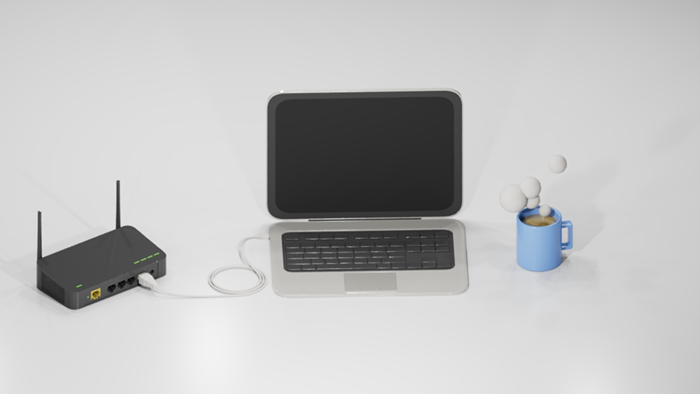
- Run a speed test using a reliable site like speedtest.net, CloudFlare, or fast.com.
- Compare the result with your subscribed internet speed.
Expected result: The speed should be close to your subscribed plan.
If the speed is still slow while connected directly to the modem, contact your ISP.
- Make sure your node is properly connected to the modem.
- This can affect internet speed.
- If your plan is 1 Gbps or higher, your router must support those speeds.
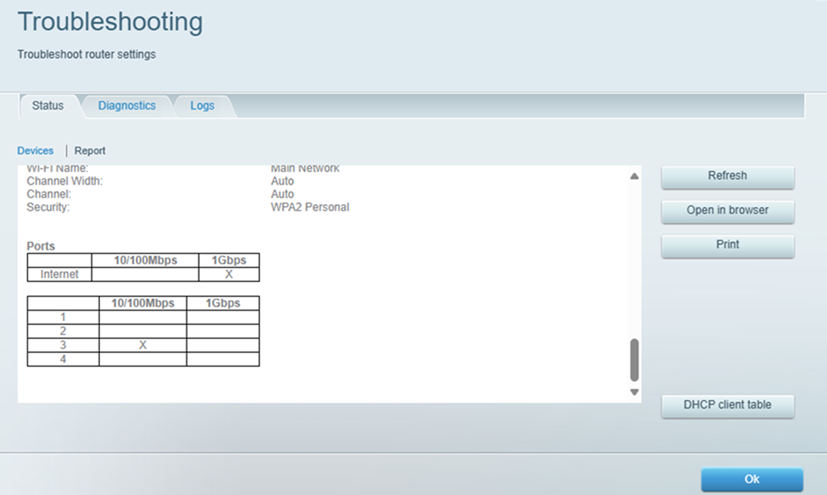
- Open your node’s web user interface and go to Troubleshooting > Status > Report.
Refer to Accessing the Linksys Smart Wi-Fi Router's user interface using the local access link.- This is where you can check the connection details.
- Scroll to the bottom and check Port Status under the Internet column.
- Confirm the speed shows 1 Gbps, 2.5 Gbps, or higher, based on your router model.
- If the speed is lower than expected, troubleshoot the connection.
- Your modem may not support higher speeds.
- There may be a speed negotiation issue between the modem and router.
- Try replacing the ethernet cable to rule out a faulty cable.
Also, make sure both your modem and router support high-speed connections.
If wired internet is fast but WiFi is slow, the issue is likely related to wireless signal quality.
1. Move closer to the nearest mesh node.
2. Reconnect to the 5 GHz or 6 GHz WiFi band.
3. Restart the device affected.
4. Avoid placing nodes behind TVs, inside cabinets, or near microwaves.
Why this is helpful: 5 GHz and 6 GHz networks are usually faster and less crowded than 2.4 GHz.
Proper placement is one of the most important factors in WiFi performance.
1. Place the main node in an open area.
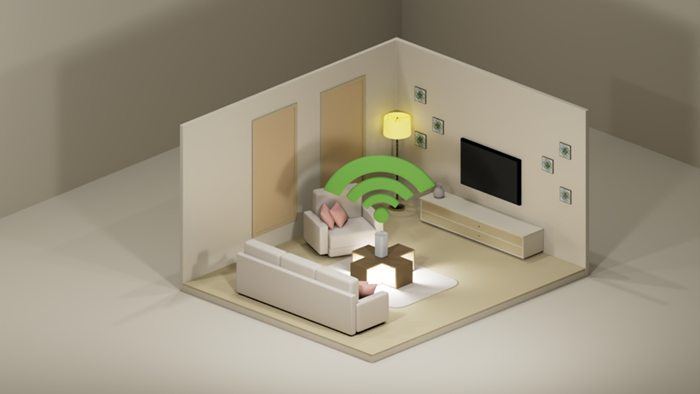
2. Keep nodes away from thick walls and large metal objects.
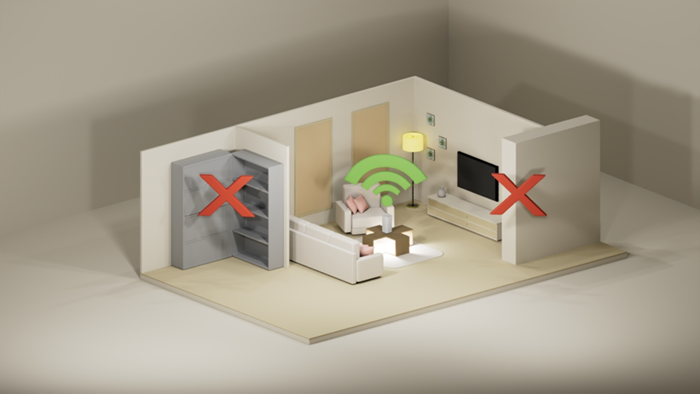
3. Avoid placing nodes too close together.
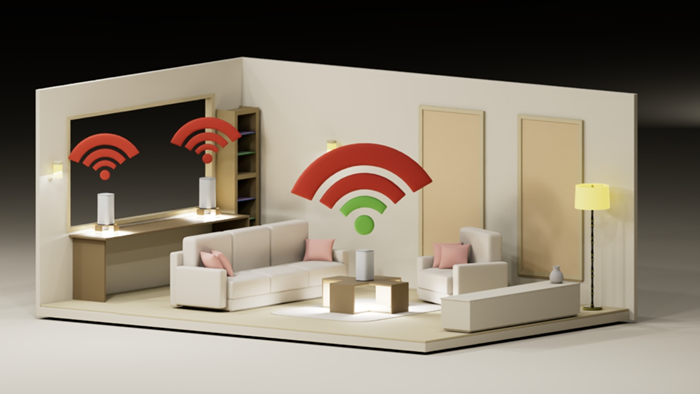
4. Try placing nodes halfway between weak signal areas and the main node.
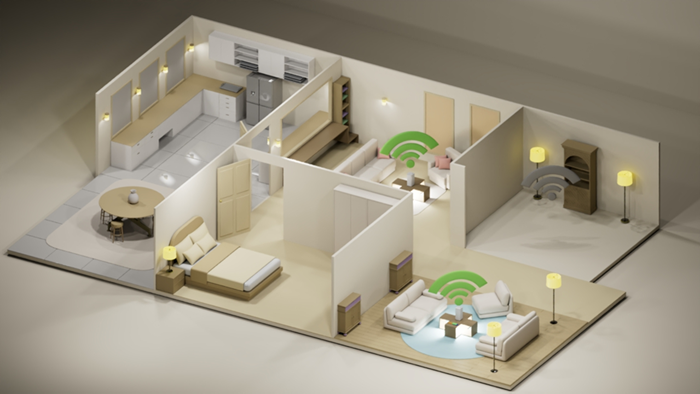
Expected result: Devices should show a stronger WiFi signal and improved speed. Learn more.
Some devices or apps may consume large amounts of bandwidth and slow down the network.
1. Pause 4K streaming or game downloads.
2. Temporarily disable cloud backup apps like Google Drive or OneDrive.
3. Disconnect unused devices from the network.
1. Turn OFF your modem and all Linksys nodes.
2. Wait 15 seconds.
3. Turn ON the modem first and wait until it fully reconnects.
4. Turn ON the main Linksys node.
5. Turn ON the remaining nodes.
Expected result: Your network connection should stabilize within a few minutes.
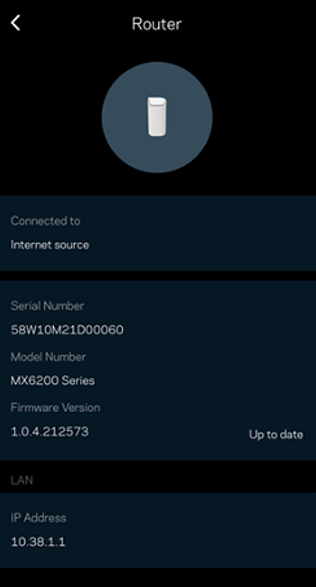
Outdated router software can sometimes cause slow speeds or connection problems.
1. Open the Linksys app. Refer to Checking the firmware version of your Linksys Mesh network.
2. Check for available firmware updates.
3. Install updates if available.
- Change DNS settings to Google DNS (8.8.8.8) or Cloudflare DNS (1.1.1.1).
- Review QoS or Media Prioritization settings.
- Check for WiFi channel interference.
NOTE: Advanced settings are optional. If you are unsure, keep the default settings.
- Why am I not getting full speed over WiFi? Many phones, tablets, and laptops have hardware limits and may not support gigabit WiFi speeds.
- Why is WiFi slower in some rooms? Walls, appliances, and distance from the mesh node can weaken wireless signals.
- Should I add another node? If you have weak signal areas in large rooms or multiple floors, adding another node may improve coverage.
Before contacting support, prepare the following information:
- Your Linksys router model
- Your internet plan speed
- Recent speed test results
- The troubleshooting steps you already tried
Providing these details can help support teams resolve your issue faster.

