


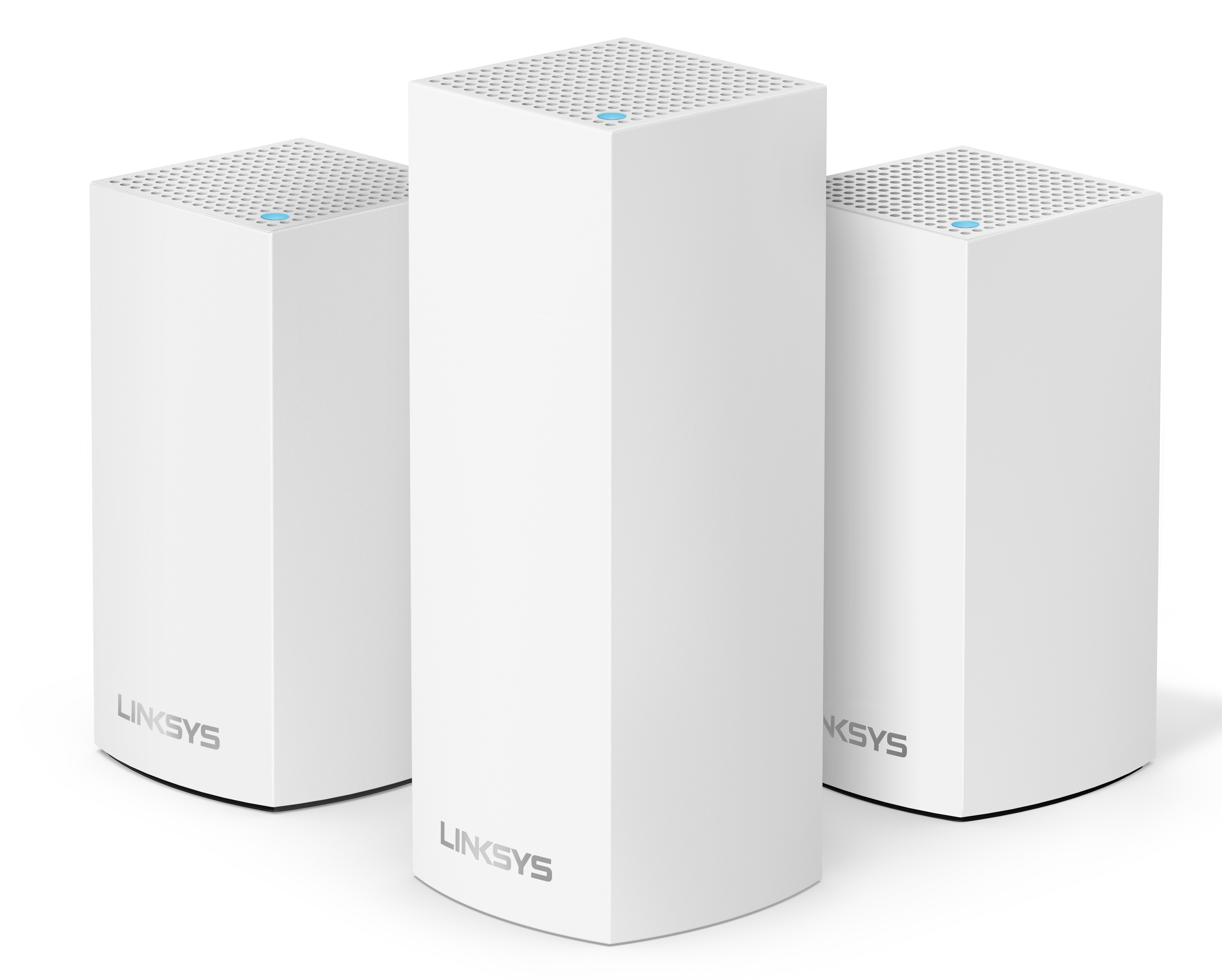
The Linksys Intelligent Mesh WiFi System comprises modular nodes that work seamlessly together to fit the needs of any home and deliver flawless WiFi wherever you want. The family of nodes comes in various sizes that work perfectly together and are beautifully designed to blend in any environment, making it easy to customize the best WiFi solution for you, regardless of your home's shape or size. And, with superior tri-band performance and Intelligent Mesh™ technology that adapts to your WiFi needs, you’ll always be on the fastest path to the internet.
HARDWARE INFORMATION
Below are the parts of a node:
- Ports - one power, two gigabit ethernet ports (configurable as one internet port and one ethernet port for the first or parent node and two ethernet ports for the additional nodes)
- Light - top panel status indicator light
- Button - reset button
- Switch - power switch
Below are the Linksys Intelligent Mesh product features:
- Tri-band network
- 802.11ac
- Next generation AC2200
- Intelligent Mesh WiFi system
- Seamless roaming
- 2x2 Spatial streams
- Full speed everywhere
- Cross-channel solution
- Beamforming
- Guest WiFi
- Basic Parental Controls
- Speed Check
- Two gigabit ethernet ports
Below are the Linksys Intelligent Mesh requirements for setup:
- An active internet connection
- The latest desktop browser to set up and manage the Linksys network
The holes provide ventilation to prevent overheating.
SETUP AND INSTALLATION
You can set up your parent node by following the instructions below:
With the latest firmware, you are now required to use HTTPS. When you log in using "http://192.168.1.1", a static page that displays steps on how to proceed to log in will appear. The easier option, however, is to just re-enter the IP address using HTTPS.
You can add child nodes using the following methods:
Yes.
Yes. It supports Internet Protocol Security (IPSec), Point-to-Point Tunneling Protocol (PPTP), and Layer 2 Tunneling Protocol (L2TP).
Recycle it or give it to a friend. The mesh system is a complete replacement for your old router.
The maximum number of nodes that can be added is still being tested by the Linksys engineering team. We have tested 12 nodes in a single system.
Yes. It works with any DOCSIS 3.0 modem.
Yes. If you have an available ethernet port on one of your configured nodes, you can connect a wired device with an ethernet cable.
Yes. You can use an available ethernet port on any of your nodes to connect your switch.
Yes. You can log in to the router's web interface.
Yes. Choose from the links below for specific instructions based on your device.
In the case of a wired mesh system, both of the 5 GHz bands can be used.
No. If you have an existing router on the network, you can connect your node using an ethernet cable and set the node in DHCP or Bridge Mode. You can also add child nodes that repeat the signal of the first or parent node.
You can add as many nodes to your home as you’d like since every home is unique. Take your home’s layout into consideration when figuring out the optimal number of nodes you need for your home. This includes length, number of rooms, and any potential interference-inducing obstacles like brick walls, metal doors, or large appliances.
Ideally, the node connected to your modem is centrally located in your home. It’s okay if that’s not possible in your particular setup, but we recommend doing so when you can. We typically recommend one to two nodes per floor. You can always start there and test out various ways of placing your node to maximize your coverage. Since every home is different, you can always add a node where needed.
If your home is already wired with an ethernet connection, you may want to take advantage of these connections to increase the range of your mesh network and reduce the risk of WiFi interference. Learn more.
FIRMWARE UPGRADE
FEATURES AND FUNCTIONS
You can access it through the web interface.
The Priority feature allows you to choose up to three devices for priority usage of your internet connection. Those devices, whether wired or wireless, will always have the best access when connecting to the internet.
The Guest Access feature is a way for guests in your home to use your internet connection without having access to your other computers or devices on the network.
The Speed Check measures your mesh network's download (from the internet) and upload (to the internet) speeds.
The mesh system displays one WiFi name for the entire tri-band network. However, with the latest firmware version, you can now give the 2.4 and 5 GHz bands different WiFi names through the router's web interface.
The mesh system displays one Guest WiFi name for the entire tri-band network.
The default Guest name is _VelopSetupxxx-guest, and the default password is blank. It is strongly recommended to enable Guest Access, rename your Guest WiFi name, and add a password.
You can block up to 10 specific websites.
You can choose up to three devices to prioritize.
The mesh system is an Intelligent Mesh WiFi system, which means the nodes can connect over wired or wireless links and will choose the best path to route the data between a client and the internet. If a node loses its connection to another node, the remaining nodes will self-heal and reestablish an internet connection through other nodes in the network.
The node that is wired to your modem/modem router (gateway) is the parent node. All additional nodes you install in your mesh system are child nodes.
Yes. The parent node (node connected to your modem with an internet connection) has a DHCP server.
Yes, the parent node (node connected to your modem with an internet connection) has a NAT Firewall with a Stateful Packet Inspection (SPI) feature.
Yes. The node has a Wi-Fi MAC Filter feature that allows or blocks specific MAC addresses from connecting to your WiFi. Learn more.
No.
Yes, you can customize your WiFi through the router's web interface.
Reserve DHCP assigns a permanent IP address to a specific DHCP client. To reserve an IP address, follow the steps below:
1. Access the router’s web interface.
2. Click Connectivity.
3. Click the Local Network tab.
4. Under DHCP Server, click DHCP Reservations.
5. This will show you the list of devices connected to your network. Select the device you want to add and click Add DHCP Reservation.
6. Click Save, then Ok.
Reserving an IP address can take up to 1 minute. After an IP address has been reserved, you can tap Reserved IP to change the reserved WiFi IP address if needed.
If you have set up a parent node and added child nodes in your mesh system, they will work as one seamless network to provide reliable, secure, and super-fast WiFi for your home.
Below are some of the possible reasons:
Your old router is still plugged in. To solve this, unplug it. If you have a modem router (gateway) and a mesh system, you might have two different private networks on your WiFi, also known as double network address translation or double NAT. You can disable or keep the WiFi name on the modem router (gateway), but it might interfere with seamless roaming on your mesh system. We recommend disabling the extra WiFi name or putting the modem router (gateway) in Bridge Mode.
Configuring your devices' security settings ensures that your network is safe from unauthorized access, malicious intent, and any cyber attackers. Learn more.
ADVANCED TROUBLESHOOTING
With the latest firmware, the Linksys WHW03 no longer uses “admin” as the default password. You will need to create one. You can recover your admin password without resetting your mesh system. Learn more.
You can restart your mesh system by following these instructions.
For the Linksys mesh router to work with a 5G router, your ISP must provide a 5G router with an ethernet port for connection to the parent node.
SPECIAL FEATURES
Bridge Mode allows you to use your mesh system to extend your existing network. If you have an existing router or modem router (gateway) and you want to continue using your main router, you can enhance your WiFi using the mesh system.
When in Bridge Mode, your mesh network will not have its own separate network. All nodes and devices connected to the nodes will be part of your existing network. All devices, whether they are connected to a node or the modem router (gateway), should be able to communicate with each other.
If you are accessing it via the router's web interface, go to Connectivity > Internet Settings > Edit. In the Connection Type section, select Bridge Mode.
When your mesh is in Bridge Mode, the following features are disabled:
- Device List
- Wi-Fi MAC Filters
- Speed Check
- Parental Controls
- Device Prioritization
- Port Forwarding
Yes. The parent node must always stay connected via an ethernet cable to your existing router.
No. Child nodes can be connected wirelessly or with an ethernet cable.
If you ever need to change the mode back to Router Mode (or any other mode besides Bridge Mode), any child node connected with an ethernet cable may go offline.

